
Appearance
Income Statement (Lytning Analytics)
Use this page when you need a profit-and-loss summary for a period — revenue, cost of sales, gross profit, operating expenses, and the net result for a store or the franchise.
Goal
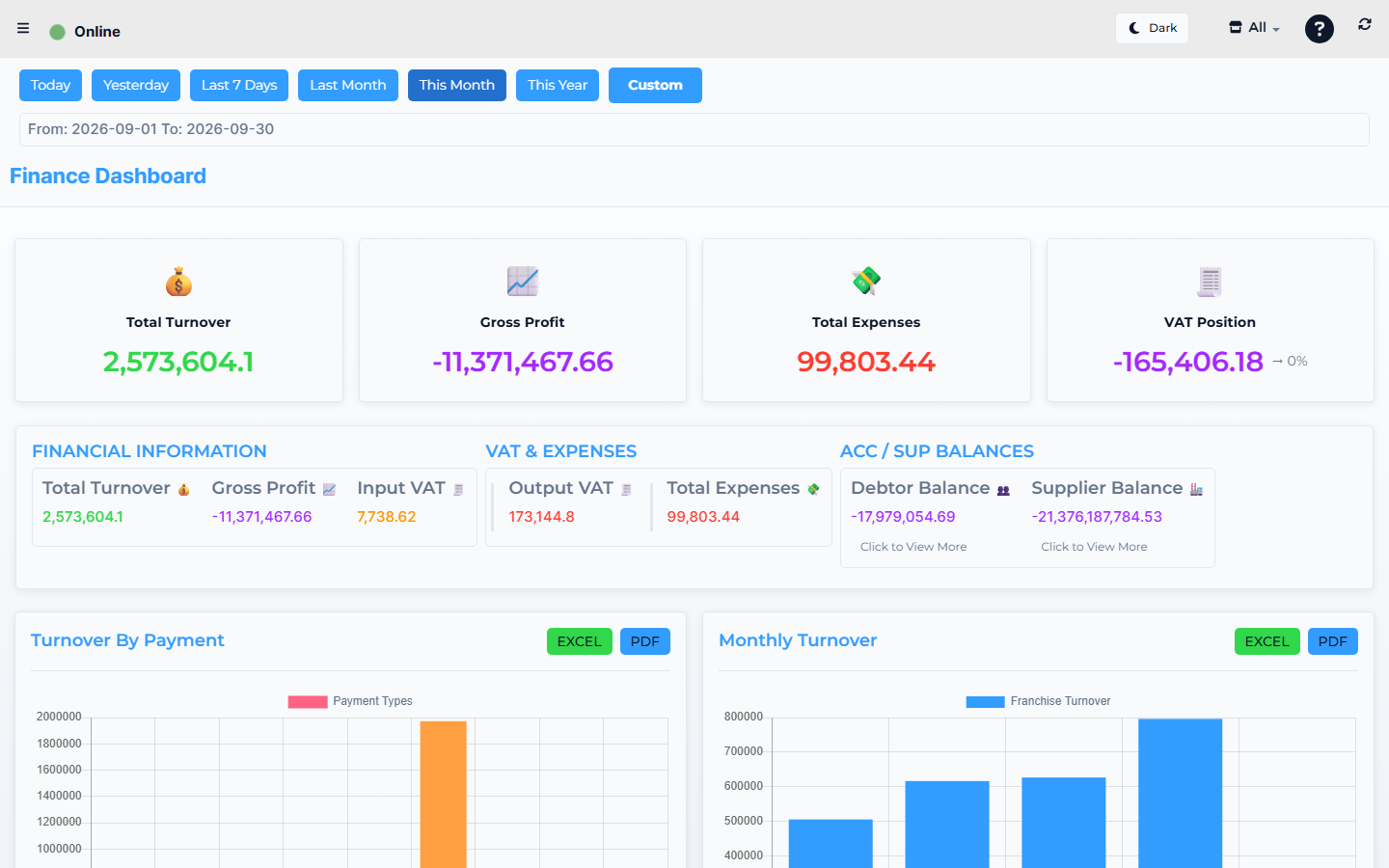
Lytning Analytics demo store — screens may differ slightly by version.
You need a profit-and-loss view of the business for a chosen period so you can see whether the store is profitable, where the costs sit, and how the period compares to last month or last year.
Where this happens
- In the Core App: open Reports & Analytics → Income Statement (top-level sidebar group).
- Direct URL:
https://analytics.pos.co.zm/income-statement(opens the same report in a new tab; single-sign-on signs you in).
Prerequisites
- You are signed in to the Core App as supervisor or franchise admin.
- Your role has Reports permissions.
- Pop-ups are allowed for the Core App URL.
- You know the period you want (month, quarter, year, custom).
Steps
1. Open Income Statement from the Core App
- In the Core App sidebar, open Reports & Analytics.
- Click Income Statement.
- A new browser tab opens at Lytning Analytics, signed in.
2. Pick the period and apply filters
- Choose a Timeline preset: Today, Yesterday, Last 7 Days, Last Month, This Month, or This Year.
- To pick a custom range, click the Custom button, then enter Start Date and End Date and apply.
- In the Set Limit input, type the expense-row cap you want.
- Click Apply Filters to refetch with the new limit.
3. Read the statement sections
The Income Statement is laid out as four sections (the page renders mobile-shaped at every viewport):
- Revenue & Cost —
Revenue,Cost of Sales. - Profit Summary —
Gross Profit. - Operating Expenses — header has a chevron toggle to collapse/expand the expense rows and a Filter expenses... input to narrow the list by account name or ID; the section ends with
Total Operating Expenses. - Financial Results —
Operating Income(Gross Profit minus Total Operating Expenses), thenOther Income/Expenseswhen the store has any, thenNet Income.
Each line item is a tap target — tapping a figure gives haptic feedback.
4. Drill into one expense account
- In the Operating Expenses list, click any account row.
- The Account Details modal opens with three fields: Account ID, Account Name, Amount.
- Click View Details in the modal to navigate to the ViewIncomeAccount page for that account.
5. Open the PDF
- Click the PDF button (top right of the statement header).
- The Income Statement PDF opens in a new tab with the URL
{pdfReportApi}IncomeStatement/{DB}?from={from}&to={to}&limit={limit}. - If the Timeline has no
from/toset, the page alerts "Please select a 'from' and 'to' date on the Timeline first."
Expected result
- The page shows Revenue, Cost of Sales, Gross Profit, Operating Expenses, and Net Income for the chosen period.
- The Filter expenses... input narrows the expense list by account name or ID.
- An account drill-down opens the Account Details modal; View Details opens View Income Account.
- The PDF button opens the period-bounded PDF in a new tab.
Edge cases
- The new tab does not open. Allow pop-ups for the Core App URL and try again.
- You land on the Analytics sign-in page. Sign back in to the Core App and open the report again.
- The PDF button alerts "Please select a 'from' and 'to' date on the Timeline first." Pick a Timeline preset or a custom range first.
- The PDF button alerts "PDF base URL is not configured. Please contact support." The report host is not set up for your store — tell your supervisor; the report must be run from the store that has the PDF service configured.
- Revenue or Cost is missing. Confirm the items have selling prices and costs recorded; an item with no cost will not contribute to Cost of Sales.
- Operating Expenses are very high. Check Finance & Admin → Financial Management → Expense Records for the period — sometimes an expense is recorded twice or against the wrong period.
- Totals do not match the Cash Flow Statement. The two reports use different rules (Income Statement is accrual-style, Cash Flow is cash-style); small differences are normal. Large differences need a supervisor review.