
Appearance
Device registration & licenses
Goal
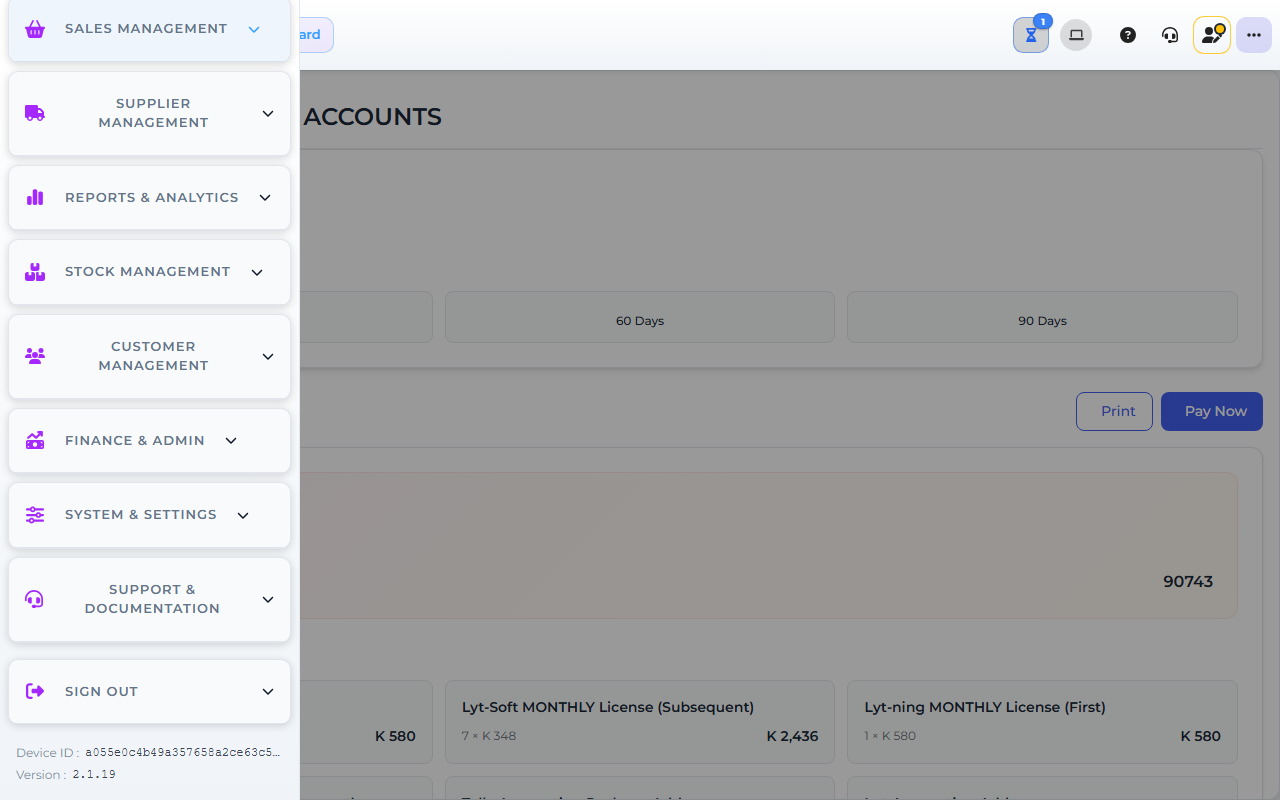
Core App demo store — screens may differ slightly by version.
Check which devices are registered for your franchise, how many desktop and mobile licences are in use, and give devices friendly names — so staff and Support can tell which till is which when someone needs help signing in.
Where this happens
- In the back office (Core App): devices and licences are managed at the franchise level. The Store Licenses & Devices screen (under Franchise Management) shows the licence count and every registered device. There is no per-store or per-device cap setting in the Core App — if a device needs to be registered or removed, contact Support.
Device registration itself happens when a device signs in to your store for the first time — there is no manual "add device" form. Removal and blocking of devices are handled by Support.
The franchise admin reviews the device list. The supervisor checks it when a cashier cannot sign in. Cashiers do not see this screen.
Prerequisites
- Franchise-admin access to the Core App (supervisors: ask your franchise admin to check the list).
- The device name or alias of the device you are looking for, if you are checking one specific till.
Steps
1. Open Store Licenses & Devices
- In the Core App, open System & Settings → System Configuration → Franchise Management (the exact path is configured at the franchise level) and open the store's Licenses & Devices screen.
- The licence cards show your store, licence count, desktop devices in use against the licence count, mobile devices in use, subscription fee, and billing cycle.
2. Check the registered devices
- The Registered Devices list shows each device's name (or alias), platform, type (desktop or mobile), who registered it, when it was last registered, its status, and its volume ID.
- Use search and the type filter to find a specific device.
- Use Export if you need the list for a licence review or a support ticket.
3. Name a device so staff can identify it
- Find the device in the list (or the card view on smaller screens).
- Click Set alias (or edit the existing alias) and give the device a descriptive name — for example "Main POS Terminal" or "Kitchen Display".
- Save. Staff and Support can now match the friendly name to the physical till.
4. When a device is replaced, retired, or lost
- Device slots are governed by your licence count — when the count is full, a new device cannot register. Contact Support to retire an old device or review the licence count.
- If a device is lost or stolen, raise an urgent support ticket so the device can be blocked from signing in.
Expected result
- You know how many desktop and mobile devices are registered against your licence count.
- Each till has a friendly alias that staff and Support recognise.
- A new device can sign in whenever a slot under the licence count is free.
Edge cases
- The cashier is locked out because the licence count is full. Ask Support to retire a retired or duplicate device, or to review the licence count. Do not register extra devices on your own.
- You cannot find the device in the list. Search by alias or by the person who registered it. If it still isn't there, the device may never have signed in — have the till sign in once, then re-check.
- A lost device is still in the list. Raise an urgent ticket — the device may be able to sign in until Support blocks it.
- The counts look stale. Use the refresh button on the licence information, or sign out and back in.