
Appearance
Cash Flow Statement (Lytning Analytics)
Use this page when you need to see money in and money out for a period — opening cash, cash in, cash out, net cash, closing cash — so you can reconcile the bank deposit against the till's actual cash movement.
Goal
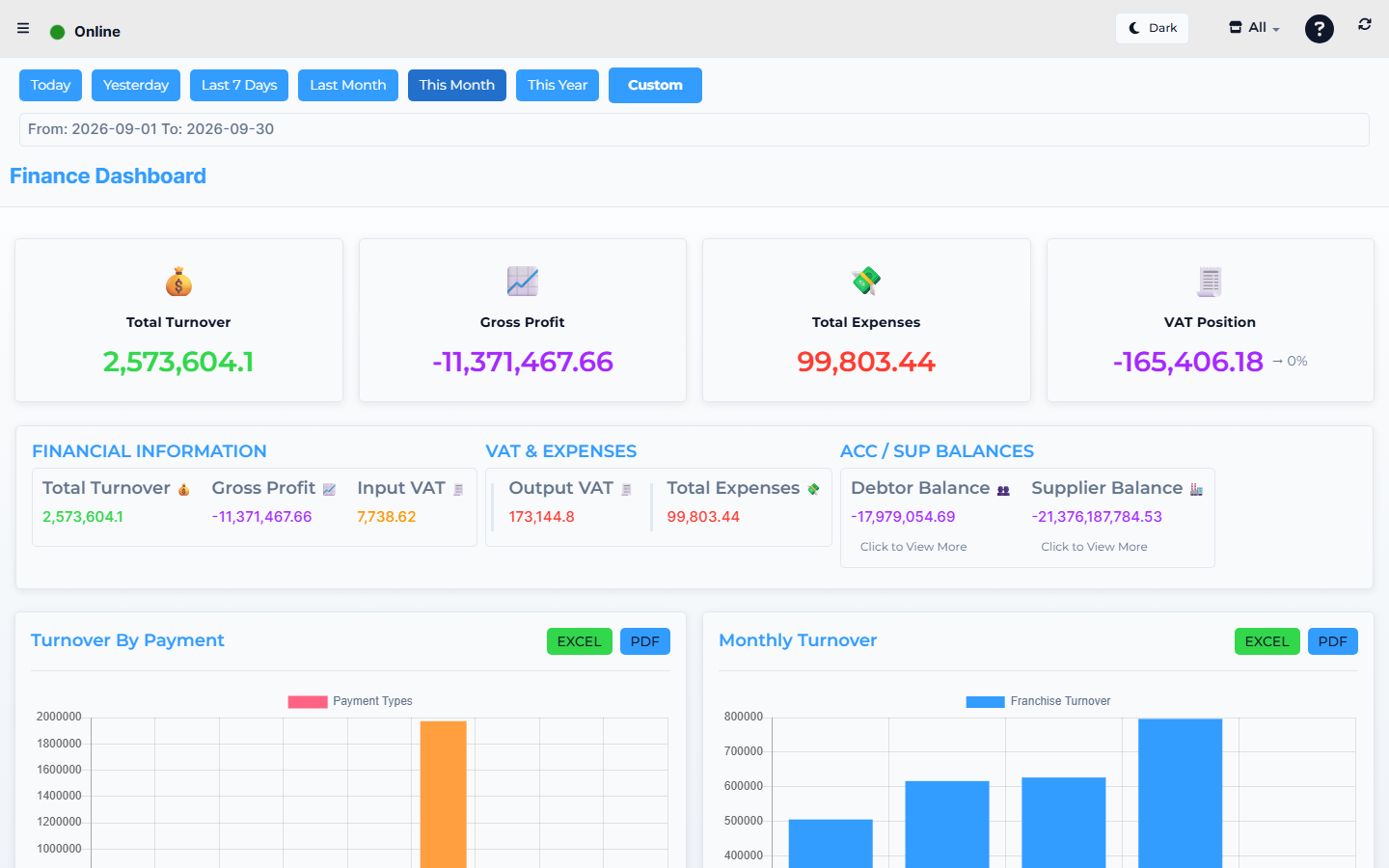
Lytning Analytics demo store — screens may differ slightly by version.
You need the cash flow for a chosen period so you can reconcile the bank deposit, see why cash is up or down, and plan the next deposit.
Where this happens
- In the Core App: open Reports & Analytics → Cash Flow Statement (top-level sidebar group).
- Direct URL:
https://analytics.pos.co.zm/cash-flow-statement(opens the same report in a new tab; single-sign-on signs you in).
Prerequisites
- You are signed in to the Core App as supervisor or franchise admin.
- Your role has Reports permissions.
- Pop-ups are allowed for the Core App URL.
- You know the period you want (day, week, month, custom).
Steps
1. Open Cash Flow Statement from the Core App
- In the Core App sidebar, open Reports & Analytics.
- Click Cash Flow Statement.
- A new browser tab opens at Lytning Analytics, signed in.
2. Pick the period
- Choose a Timeline preset: Today, Yesterday, Last 7 Days, Last Month, This Month, or This Year.
- To pick a custom range, click the Custom button, then enter Start Date and End Date and apply.
- Confirm the displayed
From: YYYY-MM-DD To: YYYY-MM-DDline before reading the figures.
3. Read the headline KPIs
The page shows five tiles at the top in this order:
- Opening Cash — cash at the start of the period.
- Cash In — money received (sales, deposits, refunds back to customers).
- Cash Out — money paid out (expenses, payouts, refunds given).
- Net Cash — Cash In minus Cash Out.
- Closing Cash — cash at the end of the period.
4. Filter the tables
In the Filters region below the KPIs:
- Pick a flow direction pill: All (default), In, or Out. The In/Out pills filter the By Account rows by net sign and the Transactions rows by
Flowvalue. - Type in the Search account name or ID input — the input filters both tables by account name and ID with a 200 ms debounce.
- Click Clear (visible only while the input has text) to reset the filter.
- Optionally type a row cap in Set Limit (default 200) — it refetches the Transactions endpoint with a 600 ms debounce.
5. Read the tables
Two tabs sit below the KPIs:
- By Account — columns: Account ID, Account Name, In, Out, Net. The tab badge shows the count of filtered rows. With nothing to show, the panel reads "No account breakdown available for this period."
- Transactions — columns: Date, Account ID, Account Name, Amount, Flow, Type, Subtype, User, Journal. The header reads Transactions (Justification). The tab badge shows the count of filtered rows. With nothing to show, the panel reads "No transactions found for this period."
6. Reconcile against the till
Compare the Closing Cash tile against the Till Management → Store Cashups closing cash for the same day. The two should agree (any difference is usually a missed payout or a till float change — investigate).
Expected result
- Five KPI tiles show Opening Cash, Cash In, Cash Out, Net Cash, and Closing Cash for the period.
- The Filters region narrows both tables by flow direction and account name/ID.
- The By Account and Transactions tabs each show their row count badge and the columns above.
- The closing cash reconciles to the Store Cashups closing cash.
Edge cases
- The new tab does not open. Allow pop-ups for the Core App URL and try again.
- You land on the Analytics sign-in page. Sign back in to the Core App and open the report again.
- The Cash In is missing expected sales. Check for offline sales that have not yet uploaded — see Working offline.
- The Cash Out does not match expenses. Confirm every expense is recorded against the right period in Finance & Admin → Financial Management → Expense Records.
- Closing Cash does not match the till. Recount the drawer, check payouts and refunds for the period, and reconcile before you bank the deposit.
- The Clear button is missing. It only appears while the account filter has text.