
Appearance
Debtors Reports (Lytning Analytics)
Use this page when you need the list of customers who owe the store money, the ageing of those balances, or a single customer's activity for a period.
Goal
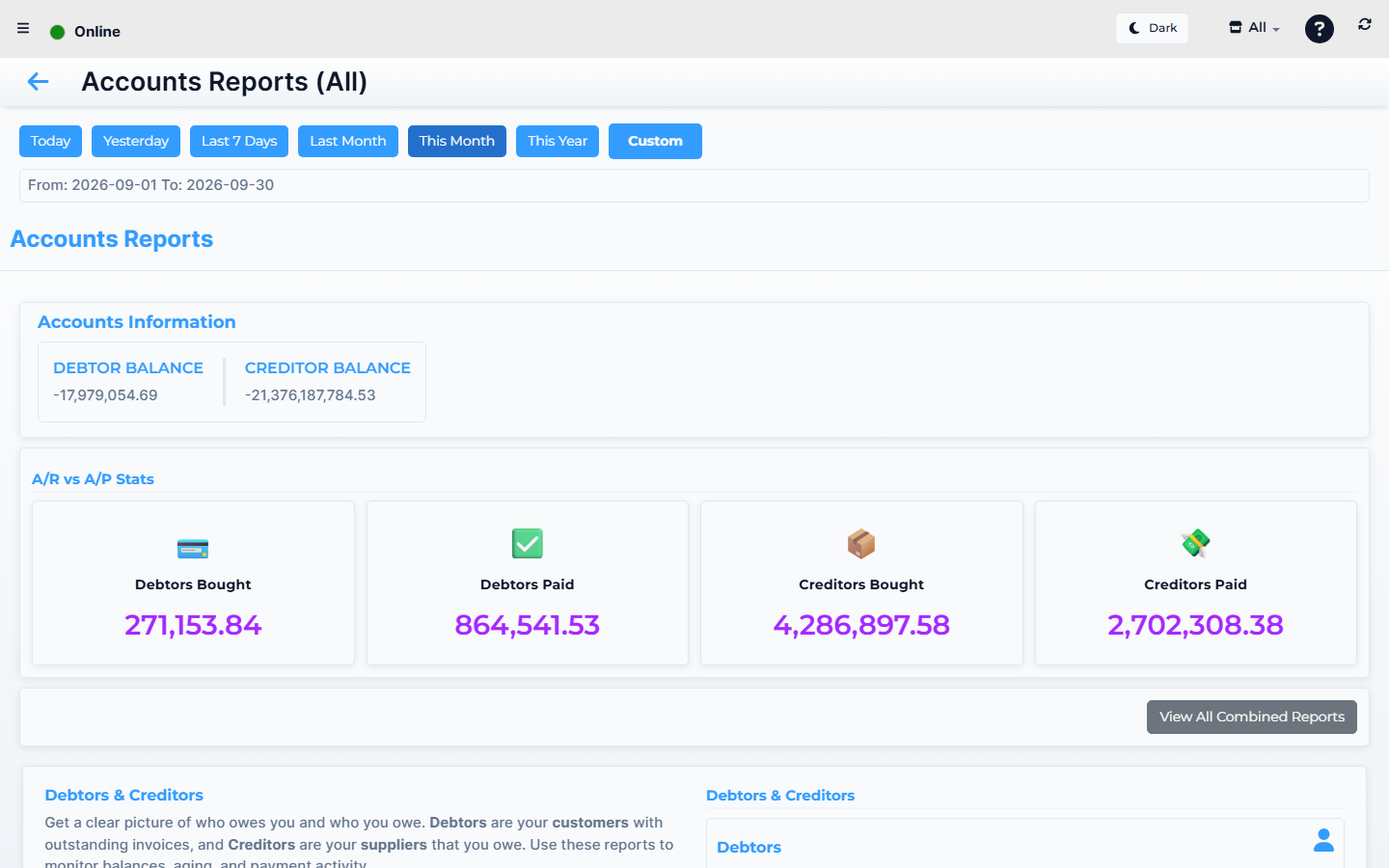
Lytning Analytics demo store — screens may differ slightly by version.
You need the debtor balances and ageing for a chosen period so you can follow up on overdue accounts, hand the figures to your accountant, or investigate a single customer's activity.
Where this happens
- In the Core App: open Reports & Analytics → Debtors Reports (top-level sidebar group).
- Direct URL:
https://analytics.pos.co.zm/debtors-reports(opens the same report in a new tab; single-sign-on signs you in).
Prerequisites
- You are signed in to the Core App as supervisor or franchise admin.
- Your role has Reports permissions.
- Pop-ups are allowed for the Core App URL.
- You know the debtor name, TPIN, or row count you want to scope by. (This page does not use a Timeline date picker — see Step 2 for the real filters.)
Steps
1. Open Debtors Reports from the Core App
- In the Core App sidebar, open Reports & Analytics.
- Click Debtors Reports.
- A new browser tab opens at Lytning Analytics, signed in.
2. Pick a debtor, TPIN, or row count
- Type in Search by Debtor to narrow by name.
- Type in Search by TPIN to narrow by TPIN.
- Type a row cap in Set Limit (default 20).
- Click Search (or press Enter in any input).
On mobile, tap Search Customers to open the Debtors Filter modal with three fields (Search by name, TPIN, Set limit), then tap Search.
3. Read the debtor list
The page shows the All Debtors table with these columns:
- Debtor ID, Debtor Name, Surname, TPIN, Contact, Balance, Is Cash Customer.
On mobile the table narrows to Debtor Name, TPIN, Balance.
4. Drill into one debtor
- Click a debtor row.
- The Items on the Table / Quote modal opens with seven fields: ID, Name, Surname, VAT, Cell Number, Balance, Is Cash.
- Close the modal with the Close button to return to the list.
Expected result
- The page lists every debtor matching the search filters.
- A row click opens the Items on the Table / Quote modal with the matched debtor's details.
- The mobile Search Customers flow opens the Debtors Filter modal with the same three filters.
Edge cases
- The new tab does not open. Allow pop-ups for the Core App URL and try again.
- You land on the Analytics sign-in page. Sign back in to the Core App and open the report again.
- A balance looks wrong. Open the debtor's drill-down modal; check for unpaid invoices, unallocated payments, or credit notes that have not been applied.
- A customer is missing from the list. They have a zero balance. Use Customer Management → Edit Customer to check the account is set up as a debtor.
- The list is empty after Search. Loosen the debtor name, clear the TPIN, or raise Set Limit.
- No ageing buckets shown. This page does not surface 30/60/90-day ageing columns. Use the back-office Customer Management → Franchise / Main Debtors view for ageing, and Lytning Analytics to read the debtor list.